- 11%
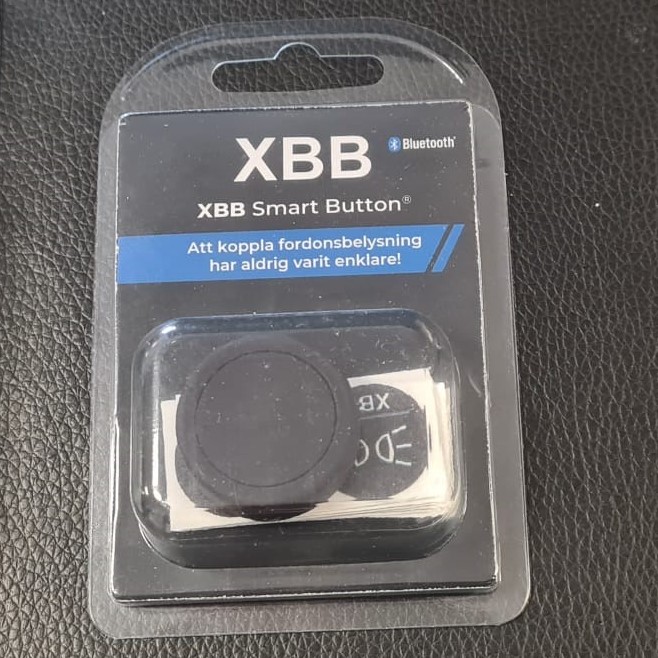

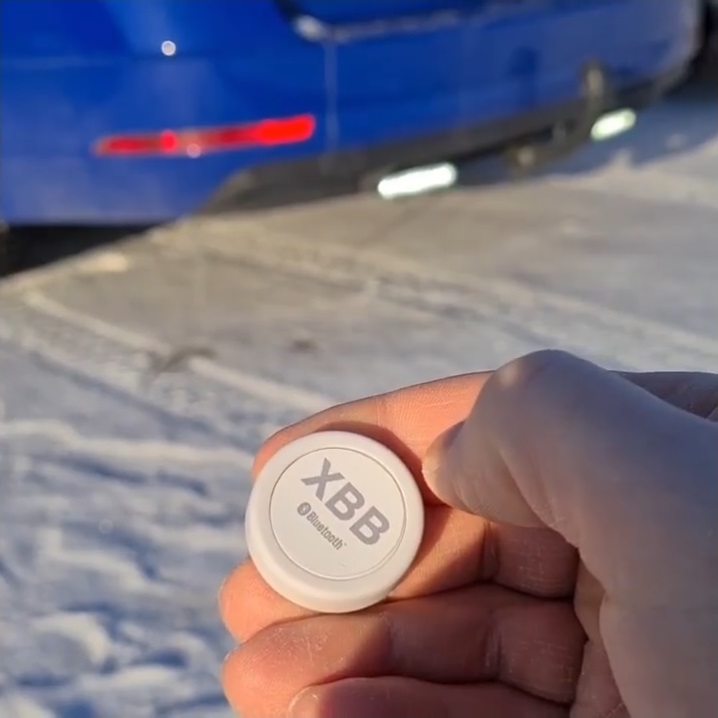
XBB Smart Button
€79.90€70.90
Lowest price in the last 30 days€74.90- Your expert in vehicle lighting
- Secure card payment
- We have been online since 2006
- BRANDXBB
- CATEGORYRelay
Description
Article no.: 121195
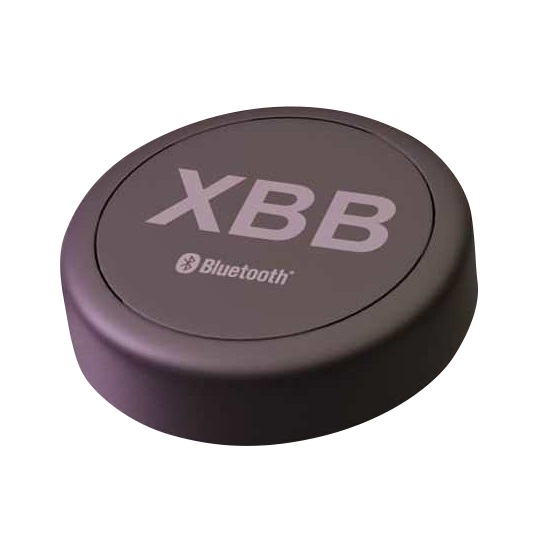
Control your auxiliary lights with a wireless push button. It communicates by Bluetooth with your XBB Dongle so you don't need to connect any wires. Quick and easy!
The push button can be programmed to either activate or deactivate output 1 & 2 on your XBB PowerUnit's. That way you can have several functions in the same button.
Here follows a few example how the XBB Smart Button can be used.
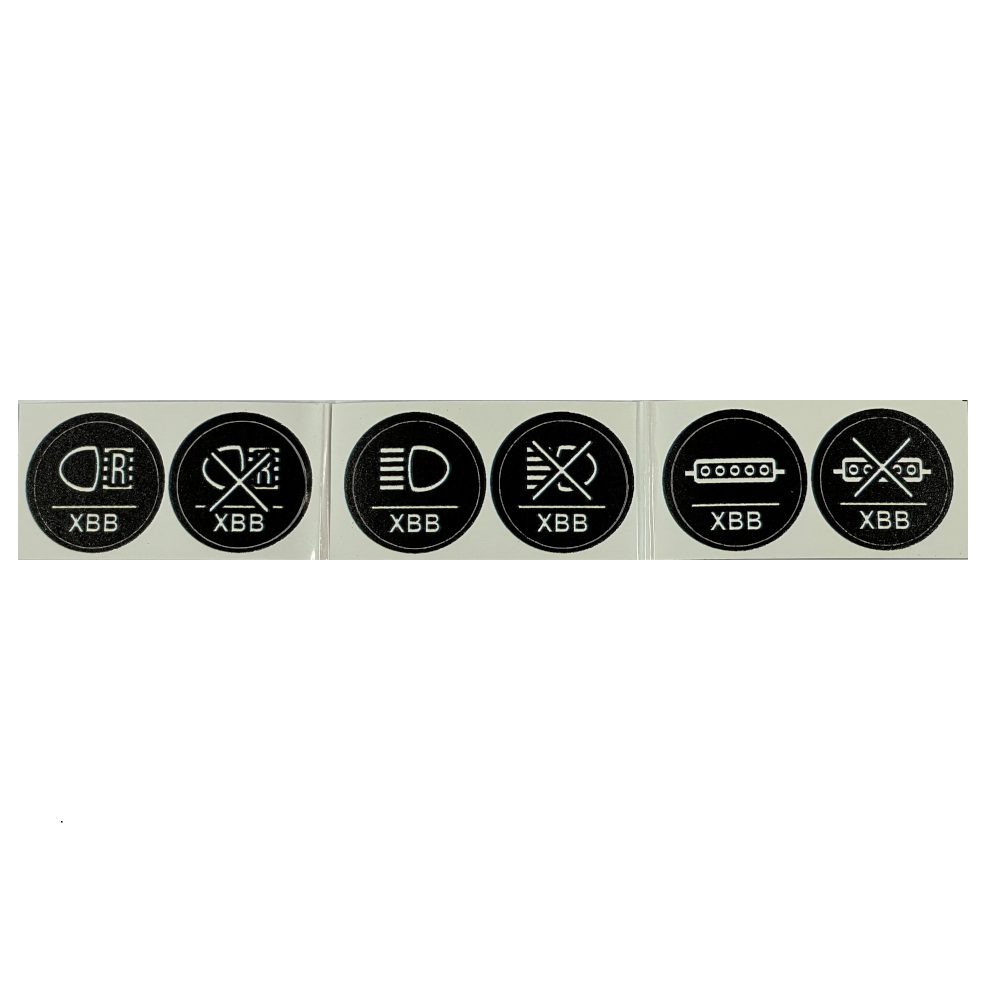
Deactivate your auxiliary lights even though your high beam is on. For example when driving in heavy snowfall.
Activate the working lights/reverse lights without putting the gearbox in reverse mode or even being inside the vehicle.
Switch off the Halo/DRL function in you auxiliary light.
You can even use the XBB Smart Button without installing a recipe in your XBB Dongle.
That way you can use the installation without having a correct recipe for your vehicle.
Quick guide
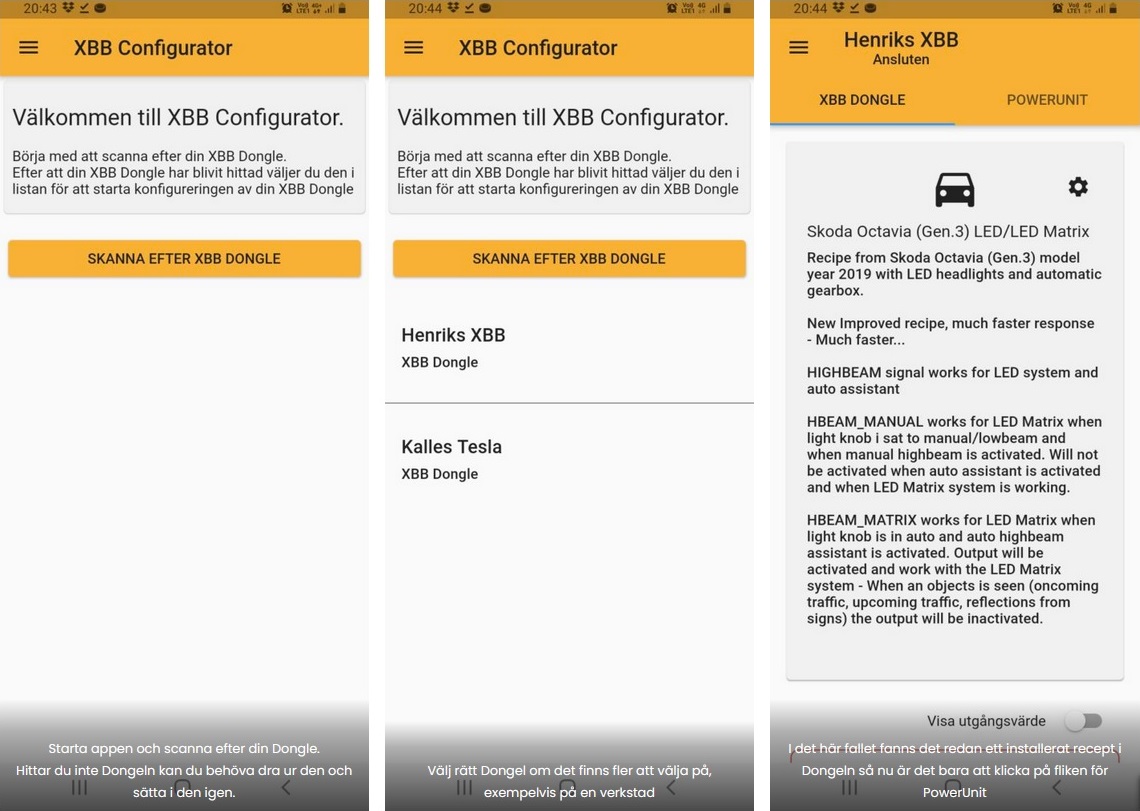
Install XBB Smart button with your XBB Configurator app.
Start the app XBB Configurator. (Available on Google Play & App Store)
Use your phone to connect to the XBB Dongle.
Choose PowerUnit and then press to add a new unit.
Click on Add new XBB Button, XBB Dongle starts to search for new devices.
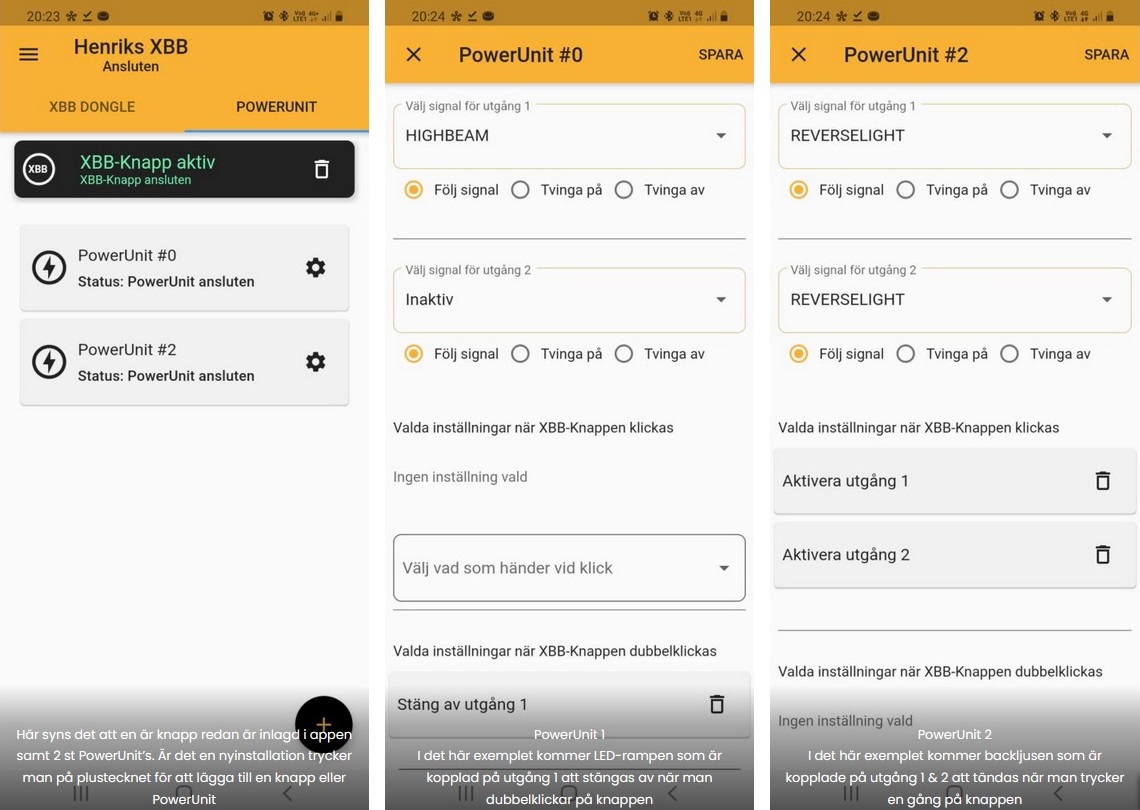
Press 1 time on your XBB Smart Button and then the Button shows up in your app you click OK.
Click on Preference on your PowerUnit.
Choose what you want to happen if you press one time or if you double press the button. Save your settings.
Make sure to test all functions before finishing the installation. Good Luck!
Good to know
NOTE! Use only our app XBB Configurator to connect to the button. Available on Google Play or App Store.
You can only connect 1 button to the system.
If you use 1 XBB Smart Button, you can connect a maximum of 3 XBB PowerUnit's to the system.
If you hold down the button for 2 seconds, you will cancel any function if you are unsure whether a function is activated or not.
To change the battery, attach the button to a surface and then screw the button to the left. The battery is of the CR2032 type.
It is NOT waterproof.